Main tool

Image to ASCII Art Generator

Use a photo or try an example. Adjust the look, then copy or export.

Image preview

Your image preview will appear here.

ASCII output

Upload an image and the ASCII output will appear here.

How to use it

  1. Drop an image onto the panel, pick one with the file button, or paste one straight from the clipboard. PNG, JPG, WebP and animated GIF all work.
  2. Set the output width in characters. 80 to 120 suits a README, 40 to 60 keeps a Discord banner from wrapping on phones.
  3. Choose a character ramp. Dense ramps give smoother gradients, short ramps give a harder, more graphic look.
  4. Adjust contrast and brightness until the subject separates from the background, and flip the invert switch if you are pasting onto a light background.
  5. Copy the text, download it as TXT, or export PNG, SVG or ANSI-coloured output.

Tips for a better result

  • One clear subject beats a busy scene. ASCII has roughly ten brightness levels, so detail that depends on fine texture disappears.
  • Crop before converting. Empty margins waste characters that could be describing the subject.
  • If the result looks flat and grey, raise contrast before you raise the width; more characters will not fix a low-contrast source.
  • Braille mode packs 2x4 dots into each cell, so it roughly doubles effective resolution when your target supports Unicode.
  • For animated GIFs, keep the width low. Every extra column multiplies across every frame.

Common questions

Can I convert my webcam feed to ASCII?

Yes. Press Use webcam and the page converts the live feed at roughly 15 frames per second. Freeze frame keeps the last frame so you can copy or download it. The video never leaves your browser.

Are my images uploaded anywhere?

No. The converter reads your file with the Canvas API inside the page. Nothing is sent to a server, so nothing is stored, logged or shared.

What image formats are supported?

Anything your browser can decode: PNG, JPG, WebP, GIF, BMP and usually AVIF. Animated GIFs are converted frame by frame into animated ASCII.

Why does my output look squashed?

Terminal characters are taller than they are wide, roughly 1:2. The converter compensates automatically, but if you paste into an editor with unusual line spacing the proportions can shift.

How large an image can I convert?

JPEG, PNG and WebP photos can be up to 32 MiB and 32 megapixels; large photos are resized locally to a maximum side of 2048 pixels. GIFs and other formats retain the 10 MiB limit. Animated GIFs also have a limit of 300 frames and a decoded-memory budget, so some high-resolution animations are rejected even when the file is small. Reduce the resolution or duration and try again. If the ASCII output is too large, lower the output width.
See what you can make

Real exports from these tools. Open an example to change its text, image settings or size.

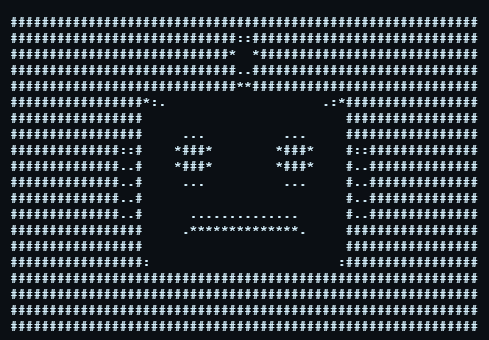
A robot icon converted into monochrome ASCII art.

Robot icon in ASCII

A simple icon with a clear silhouette. Open the same example and adjust its width.

60 columns · 20 rows

Try this example: Robot icon in ASCII
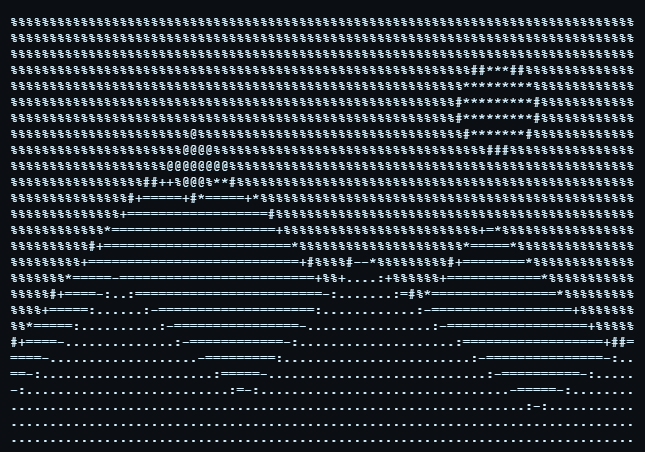
Mountains and a sun rendered as rows of ASCII characters.

Landscape in ASCII

A landscape example for comparing tone and character detail.

80 columns · 27 rows

Try this example: Landscape in ASCII
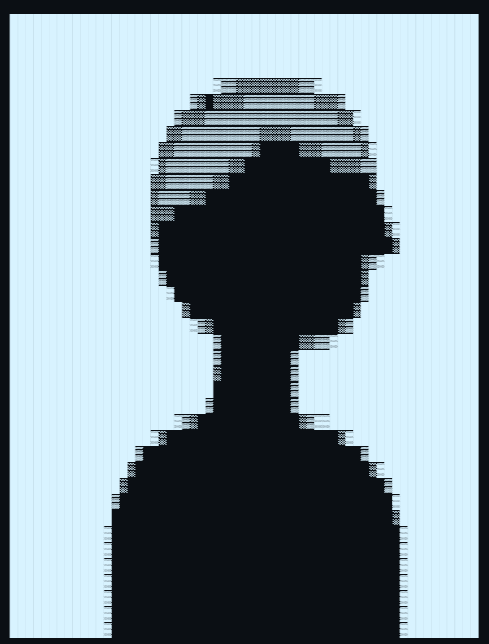
A side-profile silhouette converted into ASCII characters.

Profile silhouette in ASCII

A single subject with a clear outline, using the portrait preset.

60 columns · 39 rows

Try this example: Profile silhouette in ASCII