Converter

PNG to ASCII Art Converter

Convert your PNG

Choose a PNG or try an example. Adjust the width, then copy the text or download your result.

Image preview

Your image preview will appear here.

ASCII output

Upload an image and the ASCII output will appear here.

Turn any PNG into ASCII art

Drop a PNG into the converter and it is sampled into a grid of characters, light to dark, that recreates your image as text. Everything runs locally in your browser — your PNG is never uploaded to a server.

Why PNG works well

PNG keeps sharp edges and flat colour without compression noise, so logos, icons and screenshots convert cleanly. PNGs with transparency are handled too: fully transparent pixels become spaces, keeping the silhouette crisp.

Get a clean result

  • Use a PNG with strong contrast and a clear subject.
  • Start at 80–120 characters wide, then adjust.
  • Raise contrast if the output looks grey and muddy.
  • Switch charset for a denser or lighter style.

When you are happy, copy the text, download a TXT, or export a PNG/SVG — including a coloured version that keeps the original tones.
Back to the PNG converter

How to use it

  1. Open the converter and drop your PNG in. Files with transparency keep their silhouette, because fully transparent pixels become spaces.
  2. Start at 80 to 120 characters wide for a logo or icon, and go narrower for anything you intend to paste into chat.
  3. Raise contrast until the shape reads clearly, then pick a ramp that suits the style you want.
  4. Copy the text or export PNG, SVG or coloured output.

Tips for a better result

  • PNG is the best input format for this because it is lossless: no JPEG ringing around edges to turn into speckled characters.
  • Flat-colour graphics such as logos, icons and UI screenshots convert far more cleanly than photographs.
  • A PNG with a transparent background usually beats one with a white background, since transparency maps to blank space instead of dense characters.
  • Screenshots of text rarely convert well. The letters are already smaller than one output character.

Common questions

Does transparency work?

Yes. Fully transparent pixels are rendered as spaces, so the silhouette of a logo stays crisp instead of sitting on a block of background characters.

Is PNG better than JPG for this?

Usually. PNG stores exact pixel values, while JPG adds compression artefacts around high-contrast edges that the converter faithfully turns into noise.

Can I convert a PNG with many colours?

Yes, though plain ASCII output only carries brightness. Use the coloured export if you want the original tones preserved alongside the characters.

What size PNG should I use?

Anything above roughly 400 pixels on the long edge is plenty. The image is downsampled to the character grid, so a huge file adds time but no detail.

See what you can make

Real exports from these tools. Open an example to change its text, image settings or size.

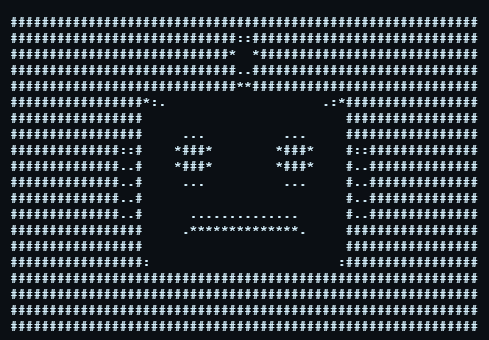
A robot icon converted into monochrome ASCII art.

Robot icon in ASCII

A simple icon with a clear silhouette. Open the same example and adjust its width.

60 columns · 20 rows

Try this example: Robot icon in ASCII
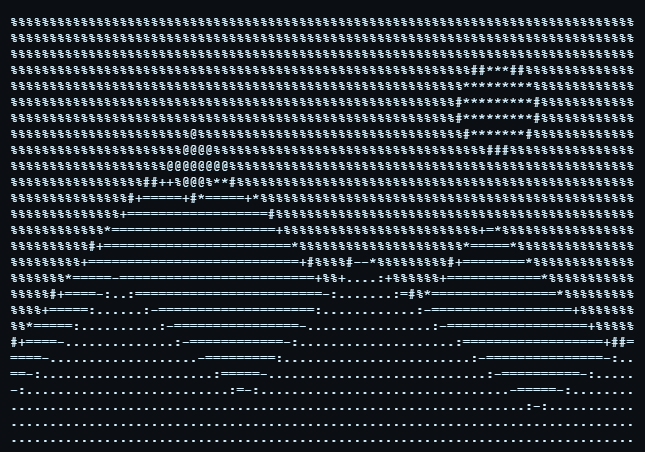
Mountains and a sun rendered as rows of ASCII characters.

Landscape in ASCII

A landscape example for comparing tone and character detail.

80 columns · 27 rows

Try this example: Landscape in ASCII
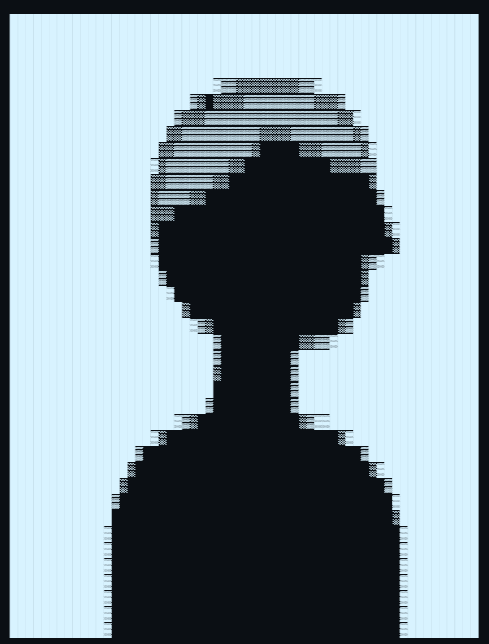
A side-profile silhouette converted into ASCII characters.

Profile silhouette in ASCII

A single subject with a clear outline, using the portrait preset.

60 columns · 39 rows

Try this example: Profile silhouette in ASCII